
 Admin
AdminI remember sitting at my kitchen table, staring at a tiny 13-inch laptop screen while trying to compare three different spreadsheets. It was a nightmare. I kept clicking back and forth, losing my place, and feeling like I was going to pull my hair out.
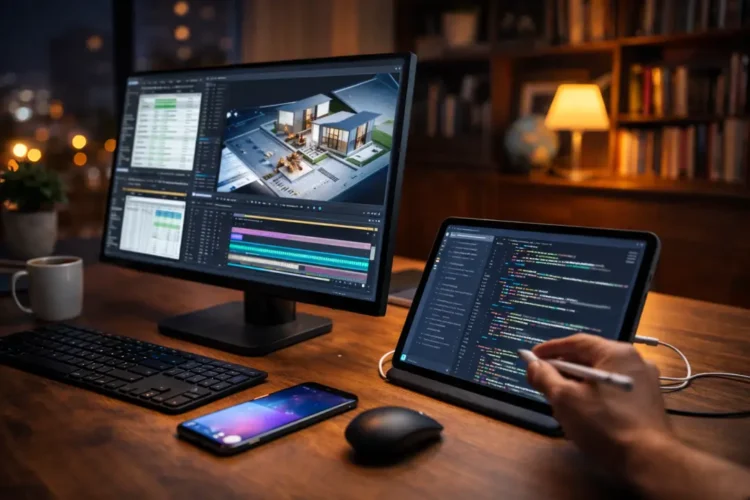
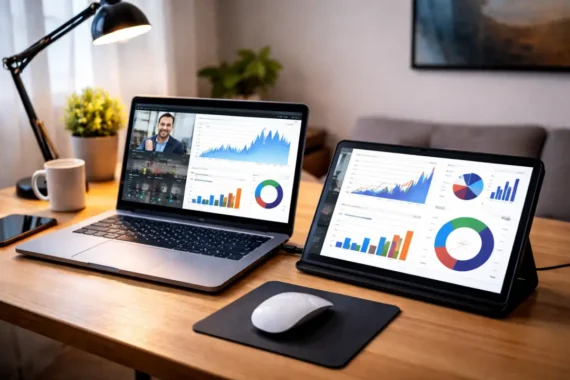
Then, I remembered I had an old iPad gathering dust in a drawer. I realized I could use the best free apps to turn my tablet into a second monitor, and my productivity honestly skyrocketed overnight. You don’t need to spend hundreds of dollars on a fancy external display if you already have a tablet sitting around.
Also check this: Top 5 best Chrome extensions for productivity. Best free apps to turn a tablet into a second monitor – here’s what you need to know.
Best Free Explained:
1. Spacedesk
Spacedesk is easily the heavy hitter in this category. I first tried it about two years ago, and I was shocked at how well it handled network connections. Unlike some of the other options that force you to be plugged in with a cable, this one lets you connect over your local Wi-Fi. It turns your tablet into a secondary screen by treating it like a network display, which is brilliant if you like to move around your desk.
Why I picked it: The sheer flexibility. You can use it with Android, iOS, or even Windows tablets, and it connects to your PC seamlessly.
The real benefit here is that you can actually extend your desktop rather than just mirroring it. It feels like a real monitor. This is perfect for students or remote workers who need to keep a Slack window or a reference document open on the side while they work on their main project.
One downside: Because it relies on your network, if your Wi-Fi is acting up or you have high traffic on your home router, you might notice a bit of lag. It isn’t ideal for gaming, but for reading text or watching a quick video, it is fantastic.
2. Deskreen
If you care about security and speed, Deskreen is among the best free apps. What makes this one stand out is that it runs through a web browser. You install the server app on your computer, it gives you a QR code, you scan it with your tablet, and boom—your screen appears in the browser window. It is encryption-heavy, which makes it a favorite for people working with sensitive data.
I found that it works impressively well on older hardware. It is super lightweight because it uses the browser’s engine to render the display. It is great for developers or anyone who wants a private, secure connection without having to install bulky drivers on their main machine.
But here is the catch: Since it operates through a browser, you lose some of that native OS integration. You don’t get the same deep-level system performance you might get with a dedicated driver, but for most office tasks, it is perfectly snappy.
3. Splashtop Wired XDisplay
Sometimes, I just want a rock-solid connection that never stutters. That is when I reach for Splashtop Wired XDisplay.
The name gives it away: it uses a USB cable. While a cable sounds like a step backward, it is actually a massive advantage because it eliminates the lag caused by Wi-Fi interference. It turns your tablet into a high-performance second monitor that feels like a real wired display.
I recommend this for people who edit photos or do light design work where even a tiny bit of latency drives them crazy. Because the data transfer is hardwired, the image quality stays high, and the input is near-instant.
The downside? You are tethered. You have to have that cable running from your laptop to your tablet, which can clutter your desk space. If you are a neat freak, this might drive you a little nuts, but the performance payoff is worth the trade-off.
4. spacedesk (via USB)
Wait, didn’t I already mention Spacedesk? Yes, but it earns another spot because of its hidden ability to work over USB tethering. If you are like me and find the Wi-Fi connection a bit spotty for long video calls, you can plug your tablet in using a standard charging cable and set it to USB tethering mode. This gives you the best of both worlds: the stability of a wire and the versatile software interface of Spacedesk.
This is honestly my favorite way to set up a mobile office at a coffee shop. You don’t have to worry about public Wi-Fi being slow or laggy. You just plug in, set it up, and you have your dual-monitor setup ready in less than 30 seconds. This is the reason I mention it again, but via USB for the best free apps.
5. iDisplay
While some of the features have moved toward premium models, iDisplay is still a classic that a lot of people rely on. It has been around forever, and its longevity shows in how well it handles different screen resolutions. If you have an odd-sized tablet that most apps stretch or distort, iDisplay usually handles it with much more grace.
It is best for people who have older hardware. If you are trying to revive an iPad 2 or an ancient Android slate, this is likely to work when the newer, more demanding apps fail. It is a workhorse, plain and simple.
However, the downside is the interface. It feels a bit dated compared to the newer options. It doesn’t have that slick, modern aesthetic, but it gets the job done without a fuss.
Common Mistakes When Setting This Up
Don’t fall into the trap of thinking your Wi-Fi is always the issue. A lot of times, the lag comes from the computer’s CPU trying to encode the video stream for the tablet. If your laptop is already running 50 Chrome tabs and a video editing suite, your computer will struggle to “broadcast” the second screen. Close some background apps first. Also, make sure your tablet is charged. These apps drain battery life like it is going out of style because the screen is constantly on, and the processor is working to receive data. Always keep a charger handy.
Frequently Asked Questions
Will these free apps slow down my main computer?
Generally, no, but it depends on your hardware. If you have a decent processor, you won’t even notice they are running. If you are using a very old laptop, you might see a slight dip in performance because the computer has to process the extra display data.
Do I need the same app on both my computer and my tablet?
Yes, absolutely. Most of these solutions work on a client-server model. You need the host software on your computer (the PC) and the corresponding app on the tablet to act as the viewer.
Can I use a touch screen on my tablet to control my PC?
Most of these apps support touch functionality! It is incredibly convenient to be able to tap your tablet screen to click on things on your desktop, effectively turning your tablet into a makeshift touch-screen monitor for your PC.
Why is the display quality looking blurry?
This usually happens because of network bandwidth. If you are using Wi-Fi, try moving closer to your router. If you are using a wired connection, check your cables to make sure they are high-quality and not damaged.
Is it safe to use these apps for work?
Most of these are well-established. However, if you work in a high-security environment, check with your IT department first. Using third-party software to bridge screens can sometimes be blocked by corporate firewalls or security policies.
Related Topics
tablet as second monitor, extend laptop screen to tablet, best free monitor app, second screen software, dual monitor setup without buying hardware
Related Articles
- You should know this in 2026! Your phone screen has more bacteria than a toilet seat!
- Google Maps hack to use it offline and save massive data
- Top 5 signs it is finally time to replace your old laptop
- Did you know? Most 4K videos on YouTube are not actually true 4K quality.
- Top 5 best Chrome extensions for productivity
For more details, check the official guide: Microsoft Support.