

 Admin
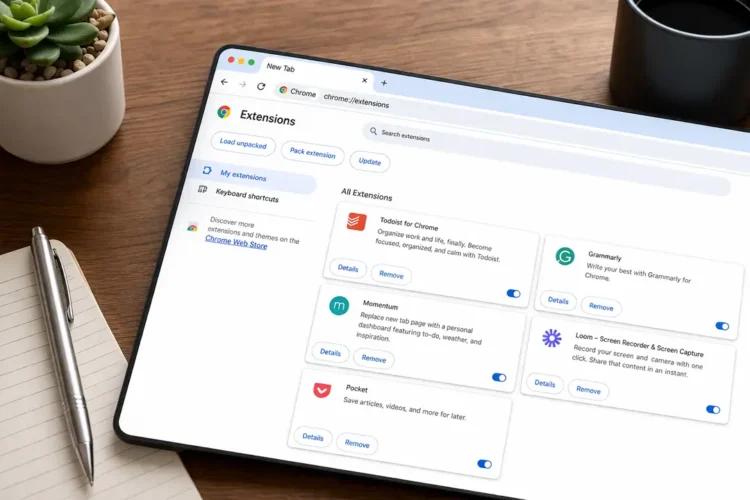
AdminI’ve spent the better part of a decade glued to a browser window, and if I’m being honest, most of that time was spent drowning in tabs and notification fatigue. Over the years, I’ve tested hundreds of tools, but only a handful have actually stuck around to become my daily drivers. These are the top five must-have Chrome extensions that transformed my workflow from chaotic to actually manageable.
The best Chrome extensions are something many people search for, and understanding them properly can save you time and effort.

1. Toby: The Tab Manager That Saved My Sanity
Remember when you have forty tabs open because you’re doing research, and you’re terrified that closing the window will make you lose that one perfect article you found three hours ago? I lived like that for years. Toby was a total game-changer for me. Instead of leaving tabs open to “remind” myself to look at them, I move them into organized collections. It turns my browser clutter into a clean, visual dashboard.
Why I picked it for the best Chrome extensions: It stops the RAM-hogging madness of having a dozen active tabs open at once. The visual interface is just so much easier to scan than those tiny little browser icons at the top.
Real benefit: You can restore a whole project’s worth of tabs with a single click. When I’m switching from my coding projects to my writing work, I can swap my entire workspace in seconds.
Who should use it: Anyone who works on multiple projects simultaneously. If you are a digital hoarder who can’t bear to close a tab, this is for you.
One downside: It can become a bit of a “digital graveyard.” If you aren’t careful, you’ll end up saving things you’ll never actually look at again.
Also check this: Top 5 best cloud storage services for 100% privacy.
2.TextExpander: Reclaiming Lost Hours
I realized recently that I was typing the same email responses, URLs, and code snippets over and over again. It sounds trivial, but those thirty-second tasks add up to hours of wasted time every single week. TextExpander lets me create shortcuts for anything I type repeatedly. Now, I type the “address” and my full office location pops up instantly. It feels like a superpower. and is among the best Chrome extensions.
Why I picked it for the best Chrome extensions: It removes the mental friction of repetitive tasks. It’s not just about speed; it’s about not having to think about the mundane stuff so I can focus on actual deep work.
Real benefit: Total consistency in communication. I don’t have to worry about typos when I’m firing off a quick reply to a client or a subscriber.
Who should use it: Freelancers, customer support folks, or anyone who finds themselves pasting the same phrases into different tabs throughout the day.
One downside: The learning curve for creating complex snippets can be a little steep if you aren’t naturally tech-savvy, and it is a subscription service.
3.Loom: Killing the Need for Another Meeting
Sometimes you just can’t explain a bug or a design tweak in an email. In the past, that meant jumping on a fifteen-minute Zoom call that could have been a three-minute explanation. Loom lets me record my screen and my face in a little bubble, and it automatically uploads the video for me to share. I’ve probably saved hundreds of hours in meetings just by sending these quick videos instead.
Why I picked it for the best Chrome extensions: It humanizes digital communication. People appreciate seeing your face and hearing your tone, which reduces the misunderstandings that happen over text-based chat.
Real benefit: Asynchronous communication. I can send a video at 10 PM, and the recipient can watch it on their own time without needing to schedule a live sync.
Who should use it: Remote workers, team leads, and anyone tired of back-to-back video calls.
One downside: It’s easy to become reliant on it and accidentally create “video spam” where you send way more detail than the other person actually has time to watch.
4. LanguageTool: Your Editor in the Browser
I’m a writer, but even I make embarrassing typos when I’m rushing. LanguageTool is better than the standard spell-checkers because it actually understands context. It catches those annoying “your” vs. “you’re” mistakes and suggests better phrasing. It works across almost every input field, from Google Docs to Slack and even Twitter, and hence it’s awesome and comes under the best Chrome extensions.
Why I picked it: It catches mistakes that standard browser spell-checkers blindly ignore. It’s like having a tiny editor sitting on my shoulder while I write.
Real benefit: Increased confidence in what I hit “send” on. It saves me from the embarrassment of sending a pitch email with a glaring grammatical error.
Who should use it: Everyone who communicates professionally. We all write more than we realize in the browser these days.
One downside: It can be a little aggressive with its suggestions, sometimes suggesting stylistic changes that change the tone of what I was trying to convey.
5. Momentum: A Moment of Zen
The internet is designed to distract you. Every time I open a new tab, the temptation to jump onto a news site or social media is huge. Momentum replaces that blank new tab with a beautiful landscape photo, a daily to-do list, and an inspirational quote. It’s a subtle nudge to stay on track rather than diving down a rabbit hole of random clicking.
Why I picked it for the best Chrome extensions: It provides a mental reset. Whenever I’m feeling overwhelmed, opening a new tab and seeing that peaceful view helps me take a breath and refocus on the one task I set for the day.
Real benefit: Intentionality. It forces me to write down my “Main Focus” for the day, which keeps me honest when I’m tempted to get distracted by side quests.
Who should use it: People who easily lose focus or struggle with procrastination when they start their workday.
One downside: If you are constantly opening dozens of tabs throughout the day, the constant page loading can occasionally feel like an unnecessary extra step.
Common Mistakes People Make, even with the best Chrome extensions
The biggest trap I fell into early on was installing way too many extensions. I once had thirty of them running at once, and my browser was moving like it was stuck in molasses. My advice? Audit your extensions every few months. If you haven’t used it in thirty days, delete it. Another common mistake is ignoring permissions. Just because an extension is useful doesn’t mean it needs access to every single site you visit. Check those settings!
FAQs
Do these extensions slow down my computer?
Some definitely do. Extensions run in the background, so having too many will drain your RAM. If you notice your browser lagging, that’s your first sign to clear out the ones you aren’t actively using.
Are these free to use?
Most of the ones I’ve listed offer robust free versions. Some, like TextExpander, have premium tiers for extra features, but the core functionality for productivity is usually accessible for free.
Can I use these on other browsers?
Most of these are available for Firefox or Edge as well, since most modern browsers are built on Chromium, but double-check their specific store pages to be sure.
Are they safe to install?
Generally, yes, if you get them from the official Chrome Web Store. Still, always look at the user reviews and how often the developers update the extension before clicking “install.”
What happens if I stop using them?
Your life goes on, but you might find yourself feeling a little less efficient. It’s all about building a workflow that feels natural for you; if an extension makes things harder, don’t feel obligated to keep it.
Related Topics
browser productivity tools, best Chrome extensions 2024, workflow optimization, Chrome extension management, digital focus tools
Related Articles
- Did you know? Actually the internet weighs about as much as a single strawberry
- Top 5 best cloud storage services for 100% privacy
- How To Unlock Windows Laptop Using Your Phone (The Easy Way)
- Top Secrets of Incognito Mode! It does not hide your activity from your ISP- The truth about incognito
- The 30-second fix for a flickering laptop screen
For more details, check the official guide: Microsoft Support.