
 Admin
AdminI remember standing in the middle of a winding mountain road in rural Italy, staring at my phone as the screen spun a loading wheel of death. I was completely lost, and my roaming data had just throttled to a crawl. It wasn’t just frustrating; it was actually kind of scary. It’s an interesting one—a Google Maps hack to save you lots of data. That was the moment I finally forced myself to master Google Maps’ hidden offline features. It’s not just a way to save data—it’s a safety net for anyone who travels, commutes, or wants to keep their phone bill from spiraling out of control.
The reality of your phone’s background data consumption
We often think that maps are lightweight, but Google Maps is a data-hungry beast. Every time you pinch to zoom, pan across a new area, or recalculate a route, the app is pulling down high-resolution tiles, traffic data, and business info from the cloud. When you are out in the middle of nowhere, or even just stuck in a spot with spotty 5G coverage, that constant back-and-forth drains your battery and eats up your data limit.
Also check this: airplane mode fast charging hack – Charge Your Phone 2x Faster: The Airplane Mode Secret.
I started noticing that my “Maps” usage was topping my battery stats every single week.
When I finally looked at my monthly usage breakdown, I was shocked to see it consistently hitting nearly 2GB.
That’s a chunk of my plan that I was essentially throwing away just to look at a street name. The shift to using offline maps changed everything. By pre-loading the areas I knew I’d be visiting, I essentially cut my maps-related data usage by about 80%. It’s a simple Google Maps hack, but it’s one that people consistently ignore until they are stuck in a dead zone.
Step-by-step: How to actually pull this off (Google Maps hack)
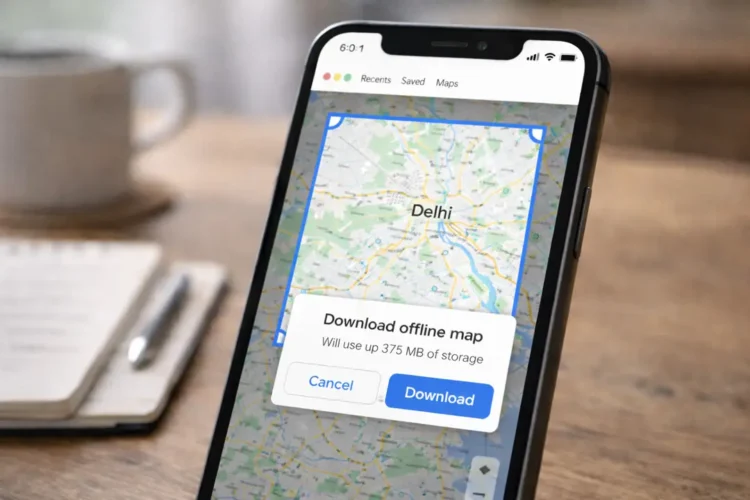
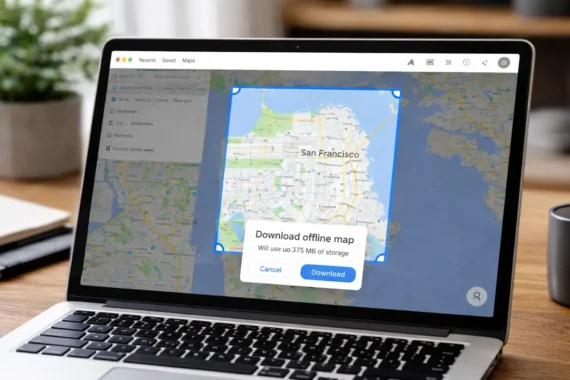
The beauty of this trick is that it’s baked right into the app, yet it feels like it’s tucked away in the back of a drawer. First, you need to open the app while you still have a solid Wi-Fi connection. Search for the city or region you are heading to. Don’t just look at the directions—scroll down on the information card that pops up at the bottom of the screen. You’ll see a button that says “Download.”
Once you hit that, you get a bounding box. You can pinch and zoom to include more or less territory.I usually grab a generous chunk, covering not just the city center but the outskirts, where I might get turned around. Once the download finishes, that map stays on your device for up to a year. You don’t even have to toggle a special “offline mode.” The app is smart enough to detect when your signal drops and will automatically switch to your local files. It feels seamless. The only time I ever notice it is when I’m zooming in on a tiny street and realize I didn’t download a high enough level of detail. This is why I’ve started being a bit more aggressive with my map sizing.
Why is this better than just taking screenshots?
Back in the day, I used to take screenshots of routes, which is honestly a terrible way to travel. You lose the ability to navigate, you lose the search function, and you definitely lose the traffic updates if you happen to get a brief signal. With offline maps, you still get turn-by-turn navigation, which is the real kicker.
You can search for restaurants, gas stations, or parks within that downloaded box, and the app will guide you there just like it does when you have full bars.
Of course, there is a trade-off. You won’t get real-time traffic updates or live transit delay warnings when you are truly offline. But let’s be honest: if you’re in a dead zone, the traffic data wasn’t going to be accurate anyway. I’ve found that having the static map is infinitely more valuable than having no map at all. Plus, your phone stays cooler. Since your processor isn’t working as hard to stream and render incoming data, you’ll notice your device doesn’t get that weird, hot-to-the-touch feeling during long road trips.
Common Mistakes I see people making
I’ve coached a few friends on this, and I’ve seen some predictable blunders. The most common one is thinking that once you download the map, you’re good for life.
Not quite. Google Maps will eventually expire your offline files if you don’t update them. I usually set my settings to “Auto-update offline maps,” so the app refreshes them whenever I’m back on Wi-Fi. It’s a set-it-and-forget-it feature that saves me from having an outdated map when I finally reach my destination.
Another mistake is storage anxiety. People worry that downloading maps will fill up their phones. While it does take up some room, it’s rarely enough to justify deleting your photos. A map of a city like London or New York might take up 150 MB to 300 MB. That is nothing compared to the 4K videos or high-res photos most of us have cluttering our camera rolls. Just clear out your old, stale maps every few months if you’re worried about space, but don’t let a few megabytes stop you from preparing for your trip.
FAQs
Can I still get turn-by-turn directions while offline?
Yes, absolutely. As long as you have downloaded the area, Google Maps will provide full navigation, including the voice prompts. Just make sure you start the route while you have service, or at least have a clear GPS signal, so the app can lock onto your location.
Do I need to toggle “Offline Mode” in the settings?
Nope! There isn’t a hidden kill switch you have to flip. The app prioritizes your saved data. If you have a map downloaded for the area you are in, it uses that first. It’s the ultimate “invisible” feature.
What happens to my battery life when using offline maps?
You will likely see a boost in battery life. By cutting out the constant cellular data pings required to fetch map tiles, you are reducing the work your phone’s modem has to do. It’s a win-win.
How do I delete old offline maps to save space?
Tap your profile picture in the top right corner of the Google Maps app, select “Offline maps,” and you will see a list of everything you’ve saved. From there, you can tap the three dots next to any map to delete or update it.
Will I still see business reviews and photos offline?
This is the one limitation. You’ll see the location and the name of the place, but the rich content like user photos, recent reviews, or live opening hour updates usually require an active connection.
You’ll get the address and the route, but you might lose some discovery features.
Ultimately, this isn’t just about saving a few cents on your data bill; it’s about control. Being able to navigate your world without being tethered to a cell tower is a form of digital independence. Once you start doing it, you’ll wonder why you ever relied on a constant, finicky stream of data just to find your way home.
Related Topics
offline navigation, save mobile data, Google Maps tips, travel hacks, GPS without data
Related Articles
- Top 5 best Chrome extensions for productivity
- Did you know? Actually the internet weighs about as much as a single strawberry
- Top 5 best cloud storage services for 100% privacy
- How To Unlock Windows Laptop Using Your Phone (The Easy Way)
- Top Secrets of Incognito Mode! It does not hide your activity from your ISP- The truth about incognito
For more details, check the official guide: Microsoft Support.