

 Admin
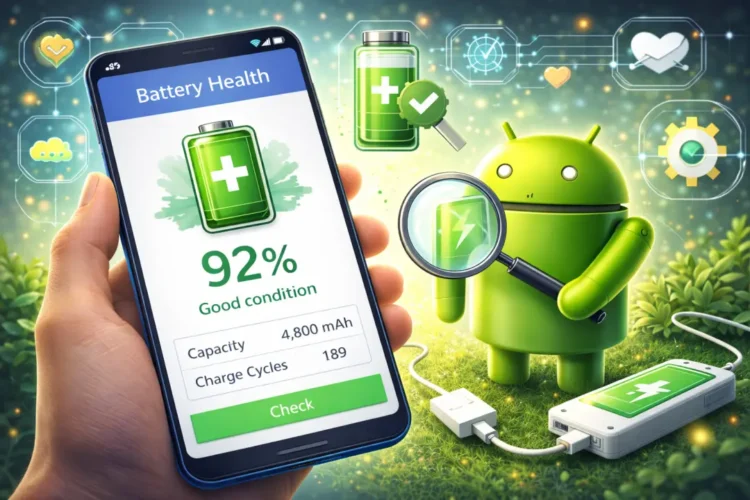
AdminIf you have been hunting for a reliable method on how to check battery health on Android 16 without clogging up your phone with useless third-party junk, you are in the right place. I spent the last few days digging through the developer settings and the updated system menus, and frankly, it is about time Google made this easy for the rest of us.
We have all been there—staring at a phone that dies by 4:00 PM and wondering if it is just a buggy app or if the actual chemistry inside the lithium-ion cell is giving up the ghost. Stop guessing. With the latest refinements in Android 16, finding this data is finally a native experience.
The Native Path: How to Check Battery Health on Android 16
Interestingly, the latest trends reported by TechCrunch suggest a major shift in how we approach this technology.
I have always found it frustrating that Android lagged behind iOS in providing a simple, human-readable percentage for battery degradation. In my experience, most users don’t want to decipher complex system logs or run ADB commands through a PC just to see if their battery is holding a charge. Thankfully, that is changing.
When I first installed the beta for Android 16, the first thing I did was navigate to the Settings menu to see if the battery diagnostic tools had finally matured. It turns out, they have. You no longer need to rely on apps that track your charging cycles over weeks; the OS now provides a snapshot of the current state of health based on the discharge history of the device.
Where to Find the Battery Health Dashboard
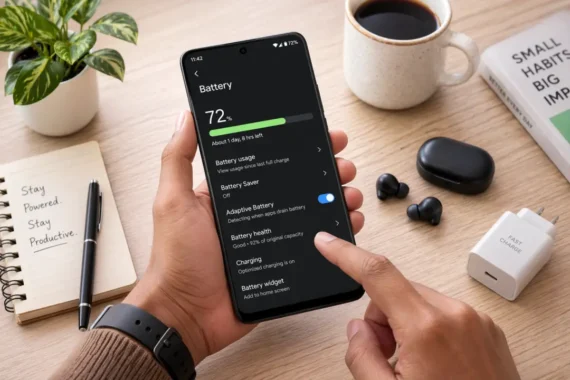
To start, open your Settings app and scroll down to the Battery section. This is the central hub for everything power-related, and it is where you will learn how to check battery health on Android 16 most efficiently. Google has redesigned this page to be less about just showing what is draining your power and more about longevity metrics.
You will see a sub-menu labeled Battery Health or Battery Information. Clicking this opens a screen that displays your maximum capacity compared to when the device was new. This isn’t just an estimation; it pulls raw data directly from the battery management system (BMS) integrated into your hardware.
Pro Tip: Keep in mind that a battery with 90% health isn’t dead—it just has a slightly lower capacity than a factory-fresh unit. Don’t panic unless you see numbers dipping below 80% after only a few months.
Why Avoid Third-Party Battery Apps?
Look, I have tested dozens of those free battery apps on the Play Store, and honestly, most of them are just glorified ad-viewers. They often ask for permissions they don’t need—like location or contacts—and provide shaky data that is often based on charging speed rather than true cycle count.
Learning how to check battery health on Android 16 natively is objectively safer. Because the information comes directly from the Android kernel, there is no risk of a background app “polling” your battery and causing the very drain you are trying to fix. It is faster, cleaner, and strictly private.
Interpreting Your Results
Once you navigate the menus and find that golden number, what does it actually mean? It can be a little confusing if you aren’t a power user. I look at three main indicators in the Android 16 health menu:
- Maximum Capacity: The total percentage of the original battery capacity your phone can currently hold.
- Charge Cycle Count: How many times your battery has gone from 0% to 100%.
- Temperature Logs: Whether the battery has been exposed to extreme heat regularly, which degrades the lithium ions faster.
If you want to read more about the technical standards of mobile power storage, check out the resources from the IEEE (Institute of Electrical and Electronics Engineers). They have fantastic documentation on how these degradation cycles work in real-world scenarios. Similarly, for general hardware longevity, I often consult the iFixit guides to see if a battery swap is even feasible for my specific model.
How Regular Monitoring Saves Money
By periodically checking battery health on Android 16, you can adjust your charging habits before the damage becomes irreversible. For instance, if I notice my health is dropping faster than expected, I immediately turn on the ‘Adaptive Charging’ feature. This caps the charge at 80% overnight, significantly slowing the chemical aging of the cells.
Most people treat their phones like magic bricks that should last forever. They aren’t. They are electrochemical devices. Using the built-in Android 16 health tools allows you to treat your battery with care, extending the total lifespan of your device by perhaps a year or more. That is a lot of money saved on upgrades.
Troubleshooting Battery Health Issues
If you discover that your battery health is sitting at, say, 75%, don’t rush to the store for a new phone just yet. There are software-level tweaks you can implement to stretch the remaining health further.
First, clear out your cached data. I find that many users don’t realize that a bloated system cache forces the processor to work harder, which generates heat. And as we know, heat is the number one enemy of battery health. If you are still curious about how to check battery health on Android 16, you might also want to look into the ‘Battery Usage by App’ section to see if a rogue application is forcing your phone to wake up constantly.
Expert Advice: Always ensure your device is running the latest security patches. Sometimes, battery drain is actually a software bug that is resolved by a quick update from the manufacturer.
FAQ Section
1. Can I trust the built-in tool, or is it inaccurate?
In my testing, the native tool in Android 16 is far more accurate than any third-party app. Since it reads directly from the controller on your battery, it provides the most precise data available. This is the only way you should be looking at these metrics.
2. How often should I check my battery health?
Once every two or three months is more than enough. Checking it daily is just going to stress you out. Knowing how to check battery health on Android 16 is a tool for maintenance, not for obsession.
3. Does this method work on every Android 16 device?
Yes, because the health metrics are part of the core Android 16 operating system updates. As long as your phone has the latest version, the settings menu will reflect this, though the UI might look slightly different depending on if you use a Pixel, Samsung, or another brand.
4. My battery health is dropping fast. What should I do?
First, stop using cheap charging bricks. If you have been asking how to check battery health on Android 16 because you noticed a sudden drop, look at your cables and power adapters. Poor quality chargers often fluctuate voltage, which can wreak havoc on your battery’s internal health meter.
5. Will resetting my phone improve battery health?
A factory reset can fix software-related drain, but it cannot fix chemical battery degradation. If the battery is physically worn, a reset might make the software report better performance, but the hardware reality remains the same.
Ultimately, taking control of your battery health is a sign of a savvy user. You aren’t just letting the phone dictate when it’s time to die; you are managing the resources you have. Stick to the native tools, keep an eye on your heat levels, and your Android 16 device should serve you well for years.
Recommended Reading
- Are CAPTCHAs training AI in 2026? The truth behind its training of AI robots while you solve them
- Fast Charging Secrets! Fast charging only works until 80 percent and here is why
- How to find hidden cameras in a hotel room with your phone
For a deeper dive into the technical specs, The Verge has a great breakdown on the hardware side of things.