
Windows 11 mic not working in one app? If the same device records clearly elsewhere, start with the app instead of reinstalling drivers. A headset can work perfectly in Windows and still be ignored by a meeting app that is listening to the laptop microphone. A browser can also have permission in Windows while the meeting website is blocked.
The quickest way to narrow it down is to test the same named microphone twice: first in Windows, then in the app that fails. Keep your headset or USB mic connected while you run both tests. If the problem only happens with Bluetooth, use the same connection for both tests so you are comparing like with like.
1. Test the exact microphone in Windows 11
Open Settings → System → Sound. Under Input, select the microphone you actually intend to use. A laptop with a webcam and a headset plugged in can display three similar-looking options. Note the full name of your chosen device before moving on.
Open that microphone’s settings, choose Start test, and say a short sentence at your normal distance. Stop the test and play the sample back. If you see input activity but hear nothing on playback, check your speaker or headphone output before concluding that recording failed. If the sample is clear, Windows captured your voice through that device at that moment. Follow Microsoft’s input test instructions if your Settings screen looks different.
If the intended device is missing or the sample is silent, jump to step 7. If the sample sounds normal, go to step 2. That simple fork matters more than a long list of generic audio fixes: a good test tells you where not to spend the next half hour.
2. Pick that same input in the app
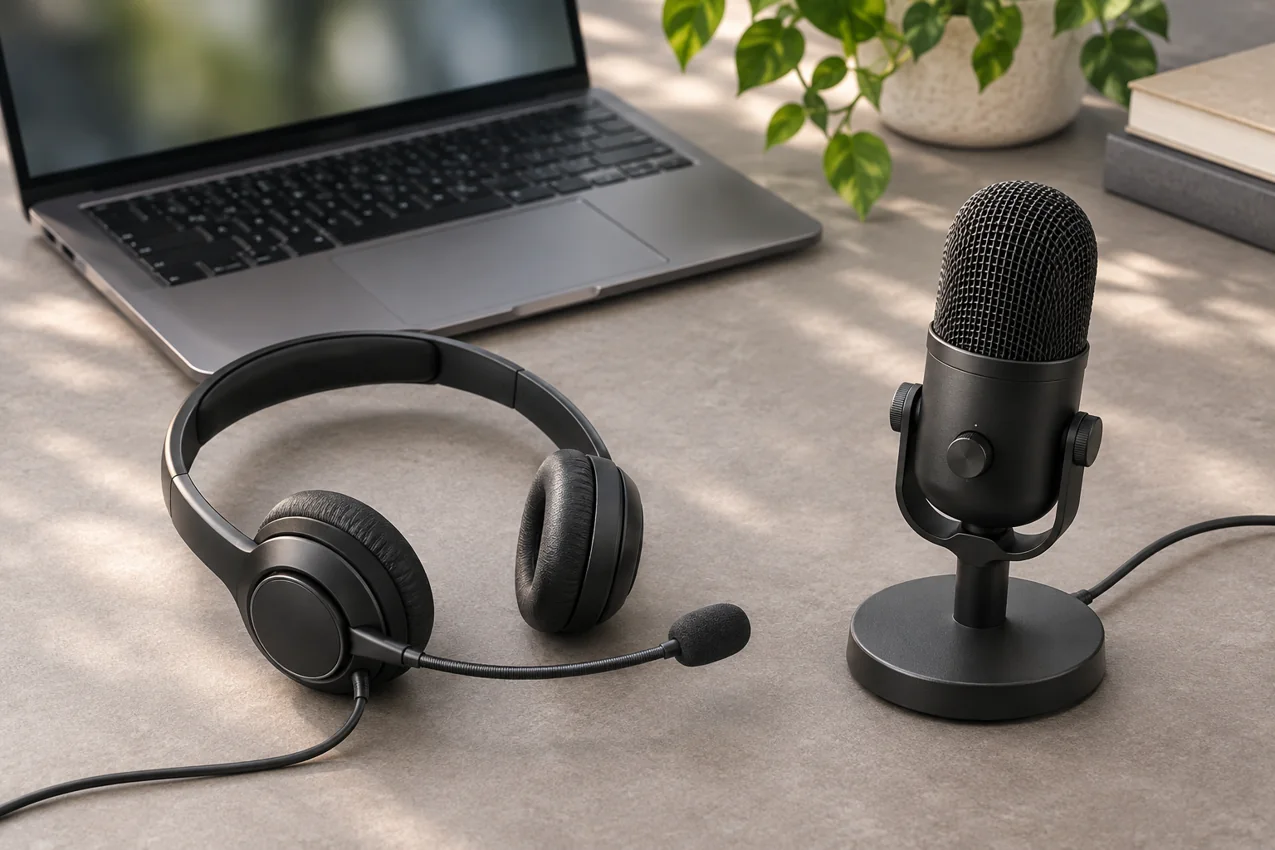
Look for Audio, Devices, Voice & Video, or a similar section. Under Microphone or Input device, choose the precise name you noted in step 1. If the app is set to Default, selecting the device by name can reveal whether the app was following a different input than you expected. This is especially useful after plugging in a webcam, connecting a dock, or pairing a headset.
In Teams, check Settings → Devices and use Make a test call if available. In Zoom, open Settings → Audio → Microphone and run its microphone test. In Discord, look for Mic Test in Voice & Video. Say the same sentence you used in Windows. A working app test means the app can receive the signal; it does not tell you whether your next call will transmit it.
3. Check Windows microphone permissions for that app
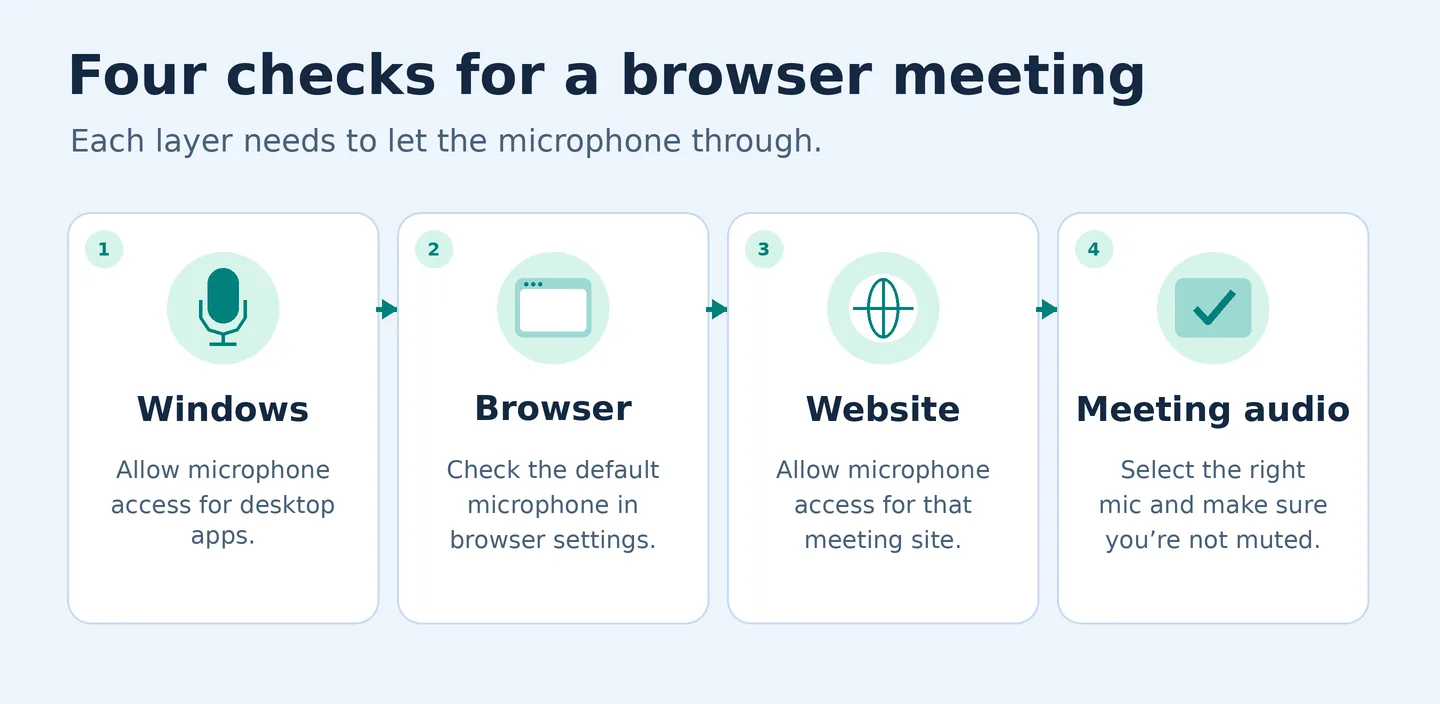
Open Settings → Privacy & security → Microphone. Check Microphone access first. Then check Let apps access your microphone and the individual switch for the affected app if it appears in the list. For conventional desktop software, check Let desktop apps access your microphone. Microsoft’s permission guide explains why desktop apps do not have the same individual switches in Windows.
Turn on only the access you actually need. Be aware that the desktop apps switch covers a group of apps, not just the one you are fixing. If you change it, close and reopen the failing app before testing again. If the switch is locked or managed by your employer or school, ask IT rather than working around that setting.
4. Check the website, not just the browser
This step applies if Teams, Meet, Zoom, or another calling service is open in a tab. The browser needs access to the microphone in Windows, and the specific website needs permission in the browser. One can be enabled while the other is blocked. Open the site controls next to the address bar and check the permission for the actual meeting site. Allow it only if you trust that site and intend to use its microphone.
In Chrome’s microphone settings, you can review site exceptions and choose the browser’s default microphone. In Firefox, the site permissions icon can clear a saved decision so the site can ask again. After a change, reload the meeting tab and check the meeting app’s own input drop-down too. Google Meet’s audio help also notes that Companion mode does not provide microphone or speaker audio.
5. If the app test passes, check the call or recording
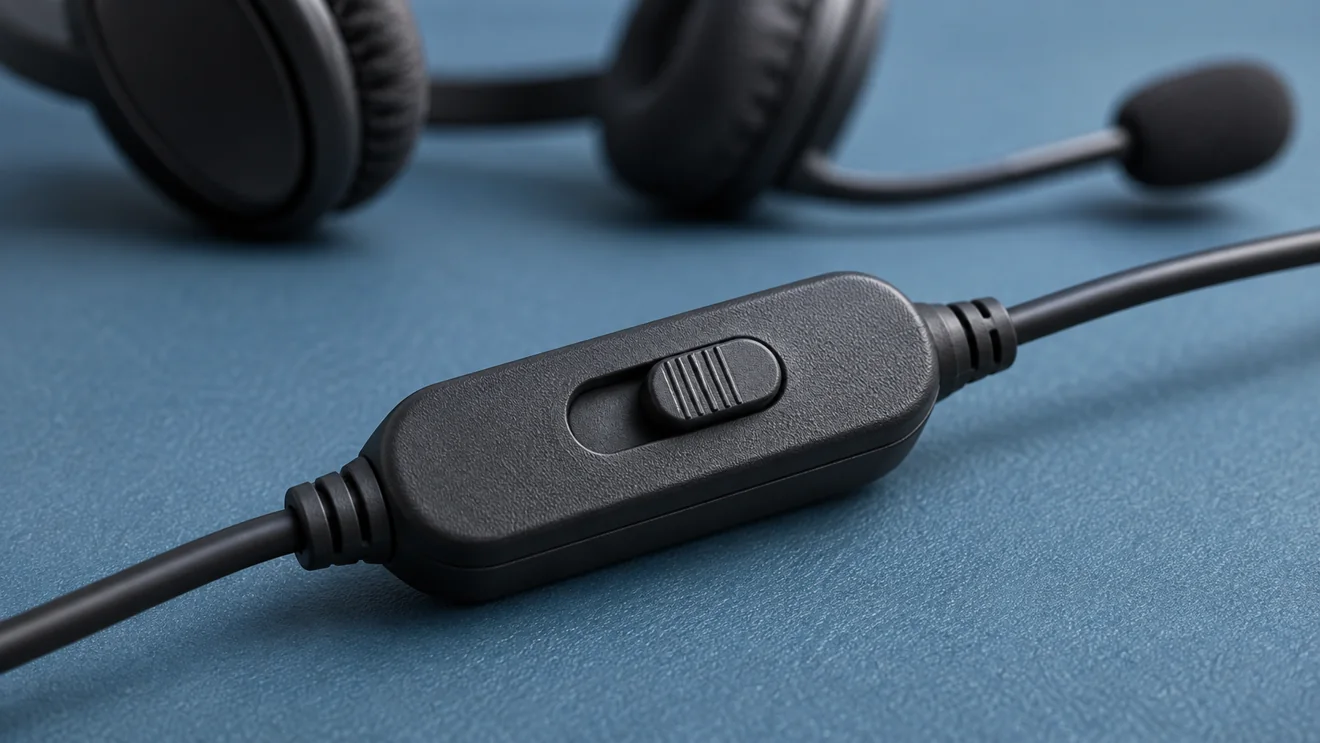
Suppose the input meter moves and you hear yourself in the app’s test, but no one can hear you on the call. Check whether you actually joined the meeting’s audio, whether the meeting or channel shows you as muted, and whether the app expects you to hold a push-to-talk key. Also check for a mute button on the headset cable or microphone boom if the signal has disappeared since the test.
If the failing app records rather than makes calls, inspect the actual recording source. In OBS, an audio input added to one scene might not be present in another. Check the active scene before adding another copy of the same input. On a call, ask one person to confirm they can hear you, or make a short test recording in the intended app. The final check should match what you were trying to do when the problem occurred.
6. Try a clean restart of just the failing app
Leave the meeting or stop recording. Quit the app completely, including its tray icon if it has one, and reopen it with the microphone already connected. If the failure only happens while another calling or recording app is open, finish that session and close the other app before retesting. Change one thing at a time so you can tell which change mattered.
For example, if the problem disappears when you quit a second calling app but comes back after every sign-in, check whether that app starts automatically. Here’s how to find startup apps in Windows 11. You don’t have to disable anything to test this: just close the other app before trying the microphone again.
If only a USB or Bluetooth headset is affected, reconnect it after ending your call, repeat the Windows input test, and reselect it inside the app. Don’t assume a successful test with the laptop microphone clears the headset. For a work-managed app, note the app name and version, the exact input name, and whether the Windows and in-app tests passed before sending the issue to support.
7. If Windows cannot record it either, check the device
When the same microphone fails in Windows and in the app, go back to the basics: check its physical mute switch, look at Input volume, reseat its plug, or try a direct USB port instead of a dock. For Bluetooth, check that Windows lists the device under Input; hearing audio through the headset does not prove Windows is using its microphone. If you can, try another known-good mic to see whether the issue follows the device.
If the microphone is still missing or silent across apps, follow Microsoft’s microphone troubleshooting steps and use the support page for your exact PC or audio device model if driver help is needed. Leave drivers alone when Windows and other apps capture normally unless you have a specific reason to suspect a driver problem.
Three situations that can look like a broken microphone
You hear fine, but your headset mic is missing. Speakers and microphones are listed separately in Windows. Put the headset on, select its microphone under Input, and speak close to it. If you do not see the headset under Input, test the laptop microphone as a temporary fallback. That can get you through the call, but it does not fix the headset. Save the headset diagnosis until you can disconnect and reconnect without interrupting the meeting.
Two devices have almost the same name. Use the built-in microphone first, then select the external device and record again. Compare the samples in a quiet room. If you still cannot tell which is which, briefly unplug the external device when no call or recording is running and note which entry disappears. Reconnect it and make a fresh selection in both Windows and the app, since reconnecting can change the active input.
The test works, but people hear you intermittently. Ask whether the problem happens when you stop holding a key, switch tabs, or switch recording scenes. Try the same sentence again without changing your distance from the mic. If the local sample remains clear but other people hear dropouts, check the app’s audio controls or connection before increasing gain. In Slack, the Huddles troubleshooting test can help separate audio-device and connection issues.
Write down the two test outcomes before trying a fix: for example, “USB headset: clear in Windows; no level in Zoom.” That makes it easier to compare after you change one setting, and it’s more useful to support than a general report that the sound doesn’t work.
Windows 11 mic not working in one app: quick diagnosis
A clear Windows sample followed by a failed app test points to the app’s selected input, Windows access, or the website’s permission. A passing app test followed by a silent call points to call audio, mute, or push-to-talk. No usable Windows sample points back to the device or system. Follow the first test that fails rather than applying every fix.