

You meant to send a document to someone you know, but Gmail filled in a similar address and you hit Send. If the Undo button is still on screen, use it first. If it has gone, there’s still something you can do about the file, as long as you sent a Google Drive link rather than a regular attachment.
Open the file in Drive and check two things in its Share window: whether anyone with the link can open it, and whether the wrong address has its own access. You may need to fix both. This won’t take the email out of the other person’s inbox, but it can stop them from opening the file through that link.
Was it a Google Drive link or a file attachment?
Open the message in Sent and look at what you shared. A Google Drive link normally opens a file in Drive, Docs, Sheets or Slides. If you own the file or can manage sharing, you can still change access. A PDF or image attached directly to the email is a separate copy. Changing permissions on the original won’t remove that copy.
If you used Gmail’s Drive button, check whether you chose Drive link or Attachment. The two choices sit in the same file picker for supported files. Gmail also turns larger uploads into Drive links when they exceed its attachment limit, so don’t assume that using the paperclip always means a copy went out.
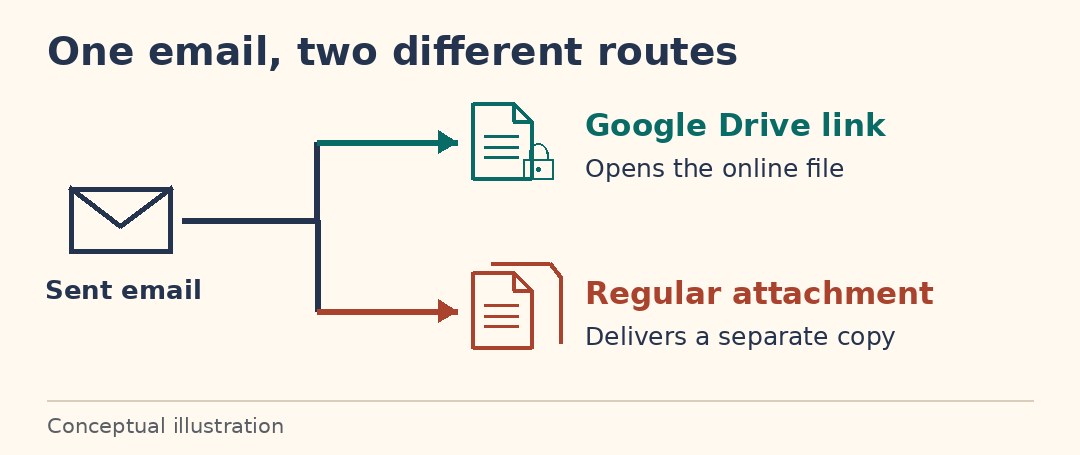
If Gmail still shows Undo, click or tap it instead of spending those seconds checking the file. Gmail’s send cancellation period is short. Once it ends, Undo can’t pull back an ordinary sent message. If you gave someone Drive access separately, check that access even if you managed to stop the email.
Remove access to the Google Drive link
On a computer, find the file in Google Drive, right-click it and choose Share → Share. You can also open your Google document and click Share in the top right. On a phone, open the Drive app, tap the three dots beside the file and look for Share or Manage access. The layout may differ from the desktop version, but you’re looking for the same two settings.
1. Check General access. If it says Anyone with the link, change it to Restricted and save. Google’s Drive sharing guide shows where these controls appear. This closes the open link. People you’ve given access to separately can still open the file, so you don’t have to start again with a new document. If a work or school account shows an organisation-wide option, check whether it is broader than you intended.
2. Check People with access. Find the exact email address you didn’t mean to share with, open the menu beside that address and choose Remove access. Save the change. If you need to add the right person, check their full address first and choose Viewer unless they need to comment or edit.
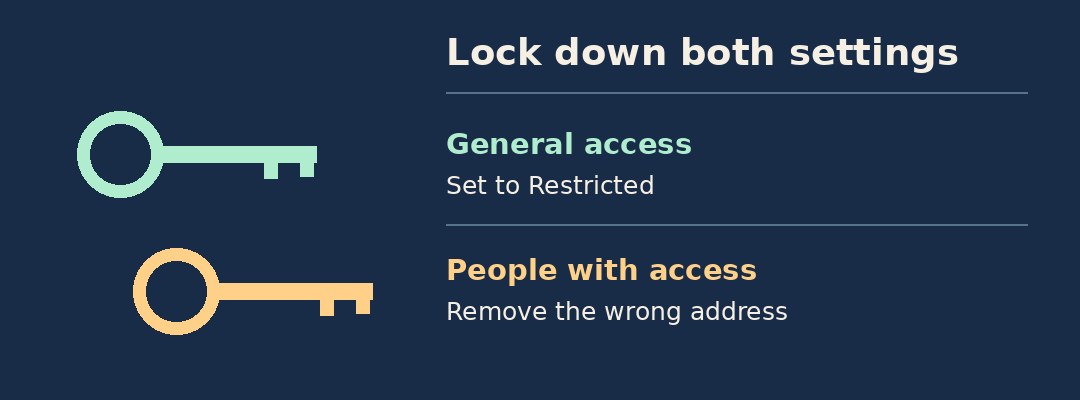
One setting doesn’t replace the other. If you remove someone’s name but leave Anyone with the link on, they can still use the link. If you set the file to Restricted but leave their name on the list, they still have access. For example, if you emailed a restricted Google Drive link to a mistyped address and never shared the file with that address, the email alone doesn’t grant permission. Check the list to make sure.
What if the person can still open the file?
Look at the folder holding it. Someone can have permission through the parent folder even when you didn’t add them to the file itself. They may also be in a Google Group or a workplace shared drive that has access. Google’s limited-access guidance explains why removing one entry won’t always remove every way in.
If you can’t change those permissions, ask the file owner or shared-drive manager for help. Don’t cut off access to an entire team folder just to fix one document. If you deliberately used Publish to web for a Google Doc, Sheet or Slide, check that setting separately. Stop publishing if you no longer want the published version available.
To check an ordinary public link, reopen it while signed out or from a different account that you know has no access. A sign-in or access-request screen tells you the file didn’t open for that test. It doesn’t tell you whether a particular Google account still gets in through a group or folder. Check the access list as well.
What you can still do after the message is sent
Drive permissions control access to the file in Drive. They can’t take back a screenshot, a downloaded copy or an ordinary attachment. Deleting the message from your Sent folder isn’t a way to delete it from someone else’s inbox. If the file was an ordinary attachment and it’s appropriate to contact the recipient, ask them to delete it without forwarding it. Don’t assume it’s gone just because you’ve asked.
If you see unfamiliar activity in Gmail and didn’t send the email yourself, that’s a different problem. Start with securing your Gmail account. If you’ve sent a confidential work file or someone else’s personal information, report it promptly through your organisation’s usual channel. Tell them what was sent, to which address and what access you’ve changed. Don’t forward the file again just to explain the mistake.
For next time, set Gmail’s Undo Send window to 30 seconds under Settings → See all settings → General, then save. Before you send a private Google Drive link, check that the file is restricted and verify the recipient’s full address. Those two checks are more useful than creating a new link in a hurry after a mistake.
Frequently asked questions
Can I remove access after the Google Drive link has been sent?
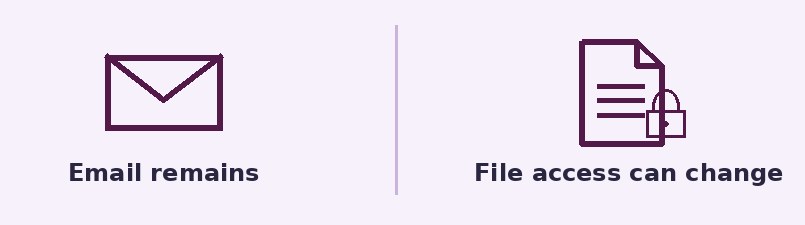
Yes, if you’re allowed to change sharing. Restrict any open link and remove unintended access under People with access. The email and URL themselves remain in the recipient’s inbox.
Do I need to make a new Google Drive link?
Usually not. Keep the original file restricted and share it with the right account. A copy with a new link won’t protect the old file if the old one remains accessible.
Can I unsend the email in Gmail after 30 seconds?
No, not an ordinary sent message. Gmail’s Undo Send can be set to a maximum of 30 seconds. You can still change permissions on a Drive file you control.
Why can someone still open my restricted Drive file?
They may have direct access, access through a folder or group, or access through a shared drive. Check those routes or ask the owner before changing a shared folder.
Does removing access delete a PDF the other person already downloaded?
No. It only changes access to the online file. It won’t remove a download, screenshot or regular email attachment.
Editorial Note: AI assisted with research and drafting. The sharing steps were checked against the linked Google documentation; no live email or account access test was performed. The diagrams explain the choices and are not screenshots. Learn more about our Editorial Policy. Featured photograph for illustration: Nataliya Vaitkevich / Pexels.