
 Admin
AdminQuick Answer: To speed up a slow laptop without software, focus on physical maintenance. Clean out dust from vents, consider upgrading your RAM for better multitasking, or swap out an old HDD for a speedy SSD. Clearing out physical clutter and ensuring good airflow can dramatically improve performance, making your laptop feel zippier without installing a single new program.
To speed up a slow laptop without software, focus on physical maintenance. Clean out dust from vents, consider upgrading your RAM for better multitasking, or swap out an old HDD for a speedy SSD. Clearing out physical clutter and ensuring good airflow can dramatically improve performance, making your laptop feel zippier without installing a single new program.
Laptop Crawling? Revive It FAST Without Software!
Hey everyone! Ever feel like your trusty laptop has decided to take up extreme slow-motion photography? It’s frustrating when your once-speedy machine starts to crawl, making even simple tasks feel like a marathon. And before you think about reinstalling Windows or downloading a bunch of “cleaner” apps (which often do more harm than good!), let’s talk about some real, tangible ways to speed up a slow laptop without touching a single piece of software. We’re getting hands-on, folks!
1. The Dust Bunny Invasion: Clean Those Vents!
Seriously, this is often the culprit. Over time, your laptop’s cooling vents and fans become tiny dust magnets. This dust builds up, blocking airflow and trapping heat inside. What happens then? Your laptop overheats, and to protect itself, it “throttles” or deliberately slows down its own performance. It’s like asking a runner to sprint with a heavy blanket over them – they just can’t perform their best.
Grab a can of compressed air (or a small, soft brush if you’re careful and know what you’re doing) and gently blow out the dust from the vents. Do this in a well-ventilated area, maybe even outside, because you’ll be surprised how much gunk comes out! You might notice an immediate difference in fan noise and overall responsiveness.
2. RAM Up: Give Your Laptop a Memory Boost
Think of your laptop’s RAM (Random Access Memory) as its short-term workspace. The more RAM you have, the more tasks it can juggle simultaneously without getting overwhelmed. If you’re constantly running multiple browser tabs, a word processor, and maybe a video call, and your laptop only has 4GB or even 8GB of RAM, it’s probably struggling.
Upgrading RAM is often one of the easiest and most cost-effective hardware upgrades you can do. Most laptops have a couple of RAM slots, and you can usually add more or replace existing sticks with higher capacity ones. Check your laptop’s manual or a quick online search for your specific model to see what kind of RAM it uses and how much it can support. It’s like giving your laptop a bigger desk to work on!
3. Ditch the HDD, Embrace the SSD
If your laptop is more than a few years old and still has a traditional Hard Disk Drive (HDD), this is probably the single biggest performance upgrade you can make. HDDs have spinning platters and read/write heads – they’re mechanical and slow. Solid State Drives (SSDs), on the other hand, use flash memory, like a giant USB stick, and have no moving parts. They are blazingly fast.
Swapping an old HDD for an SSD will dramatically improve boot times, application loading speeds, and overall system responsiveness. It feels like getting a brand new laptop! This upgrade usually involves migrating your operating system and files, which can be a bit more involved than RAM, but the performance boost is absolutely phenomenal and totally worth it. You’ll wonder how you ever lived without one.
4. Check Your Battery Health
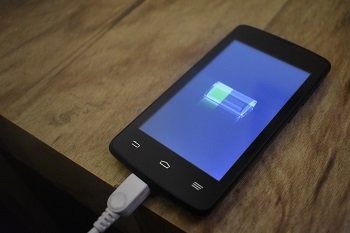
While not a direct speed booster in the same way RAM or SSDs are, an old, failing battery can sometimes impact performance. Some laptops (especially Apple ones, but Windows machines can also do this) will throttle the CPU speed when the battery is severely degraded to prevent unexpected shutdowns or power issues. If your laptop only performs well when plugged in, a dying battery might be contributing to its sluggishness when running on juice. Replacing an old battery can restore full power delivery and potentially remove any performance caps.
5. Declutter External Peripherals
This is a minor one, but sometimes a host of old, unused USB devices, docks, or even faulty chargers can subtly interfere with your system. Unplug anything you’re not actively using. Make sure your power adapter is the correct one for your laptop and isn’t damaged. A consistent, proper power supply is crucial for stable performance.
There you have it! Before you throw your slow laptop out the window or spend money on a new one, try these hardware-focused fixes. You might be surprised at how much life you can inject back into your old friend without ever installing a new program. Happy tinkering!
FAQs
Q1: Will cleaning my laptop physically help with speed?
Absolutely! Dust buildup causes overheating, which makes your laptop deliberately slow down to protect its components. Cleaning out the vents with compressed air can significantly improve cooling and restore normal operating speeds.
Q2: Is upgrading RAM worth it for a slow laptop?
Definitely! If your laptop struggles with multitasking or running multiple applications, adding more RAM (Random Access Memory) gives it more “workspace,” allowing it to handle more tasks simultaneously without getting bogged down, leading to a noticeable speed increase.
Q3: Can an SSD really make a big difference?
Yes, it’s often the single biggest upgrade for an older laptop with a traditional hard drive. An SSD (Solid State Drive) has no moving parts and is exponentially faster than an HDD, resulting in lightning-fast boot times, quicker application loading, and much snappier overall system responsiveness.
Q4: How often should I clean my laptop’s vents?
It depends on your environment, but generally, giving your laptop’s vents a quick clean with compressed air every 3-6 months is a good practice. If you use it in dusty environments or have pets, you might want to do it more frequently.
Related Articles
- Sunfeast Dark Fantasy Choco Filled Cookies, 460g @ 149.
- Cello Plastic Hot Pot – 2L, Red @272
- Tata Tea Premium Tea 1kg @ 409
- Xiaomi 32″ HD Ready LED TV @10,749*
- GRAB : Zandu Copper Bottle for ₹647
For more details, you can check official Microsoft guide.